
Features
Nine areas in the order the application becomes useful: import, understand and organize the archive, protect and back it up, then the finer details. The Backup manager has two areas of its own.
Import
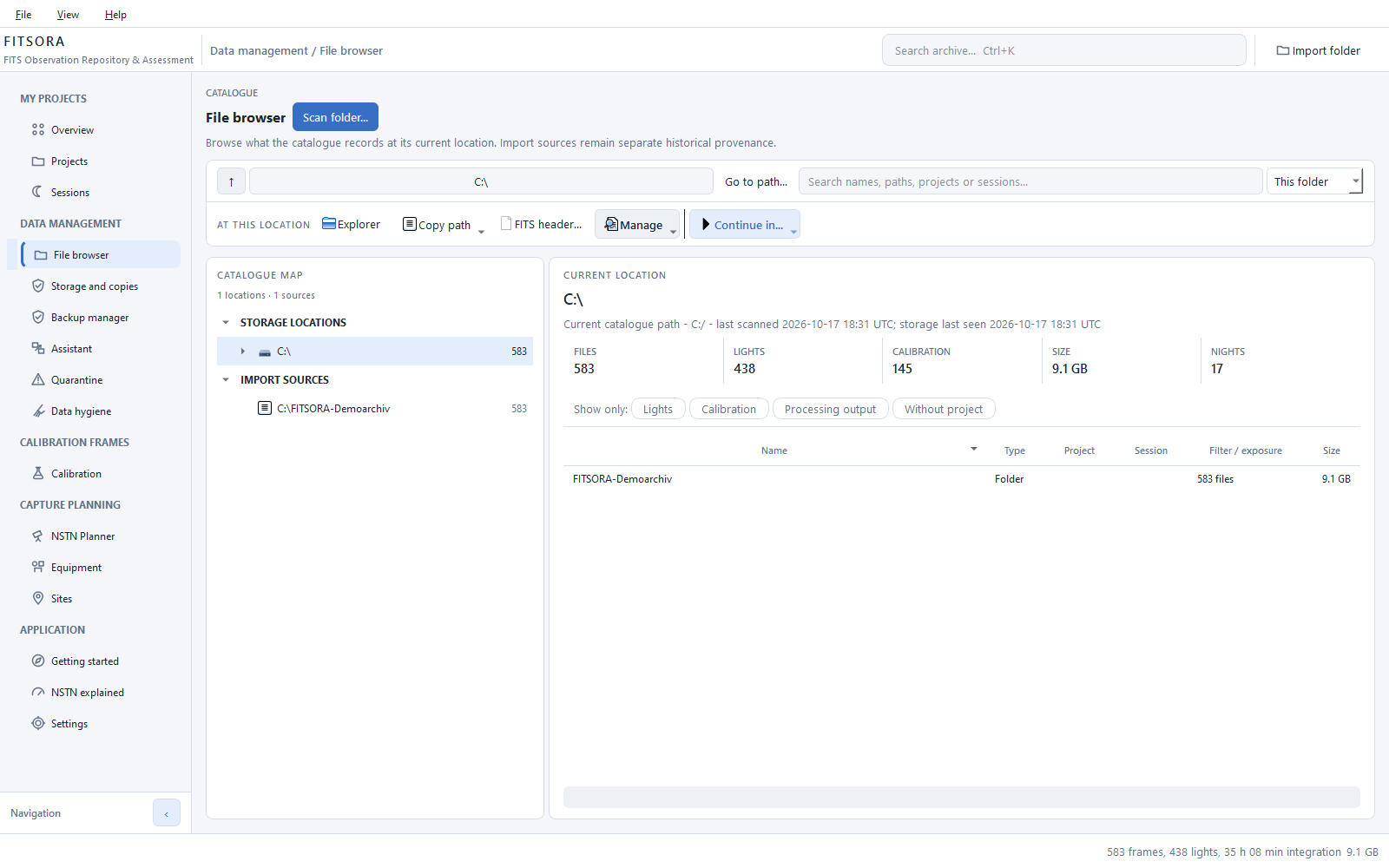
Read headers, derive structure
- FITS for exposures
- Reads exposure headers without changing the files. The images stay where they are.
- XISF for results
- Reads XISF headers as processing results and associates them with existing projects. XISF files never create projects; exposure time, nights and calibration requirements come only from raw exposures.
- Incremental scanning
- The first scan reads the archive. Later scans read only changes. A scan holds the database write lock only while it records results, not while it reads files, so changes in the interface, such as the setup or site of a session, go through meanwhile. If the catalogue is busy anyway, FITSORA says so (“Catalogue busy”) instead of hanging; the change is not saved then.
- Object catalogue
- Almost 13,000 objects resolve target names. The catalogue is built directly from OpenNGC (release v20260501), with type, axes, position angle, constellation, common names and cross-references, supplemented by Sharpless entries from NASA HEASARC. Aliases make typed names findable: “NGC 1976” finds M 42, “C 20” finds NGC 7000. A cone search identifies targets behind coordinates, ranking by extent as well as distance.Sources: OpenNGC by Mattia Verga and contributors, under CC BY-SA 4.0; the Sharpless entries from the HIIREGION table of HEASARC (NASA/GSFC), used under its data policy. Authors, changes and acknowledgements are in the application under Settings › Sky catalogues and here under Sources and licences.
- Grouping
- Individual files become projects, observing nights and sessions. An observing night continues past midnight. A focal length that scatters by up to two per cent in the headers, for example because capture software writes the measured focal length, counts as the same optical train and no longer splits a night into several sessions.
- Location and origin
- Where a file is now stays separate from the import it originally came from. Both are visible.
- Import history
- Every scan remains traceable. Remove an import from the catalogue without touching its files.
- Ignored paths
- Name folders that should never be scanned once, rather than skipping them every time.
- Processed exports
- FITS files without capture time, exposure and image type are recognized as processed exports. They do not count towards projects, nights or calibration.
FITSORA · File browser
Overview
What the years have added up to
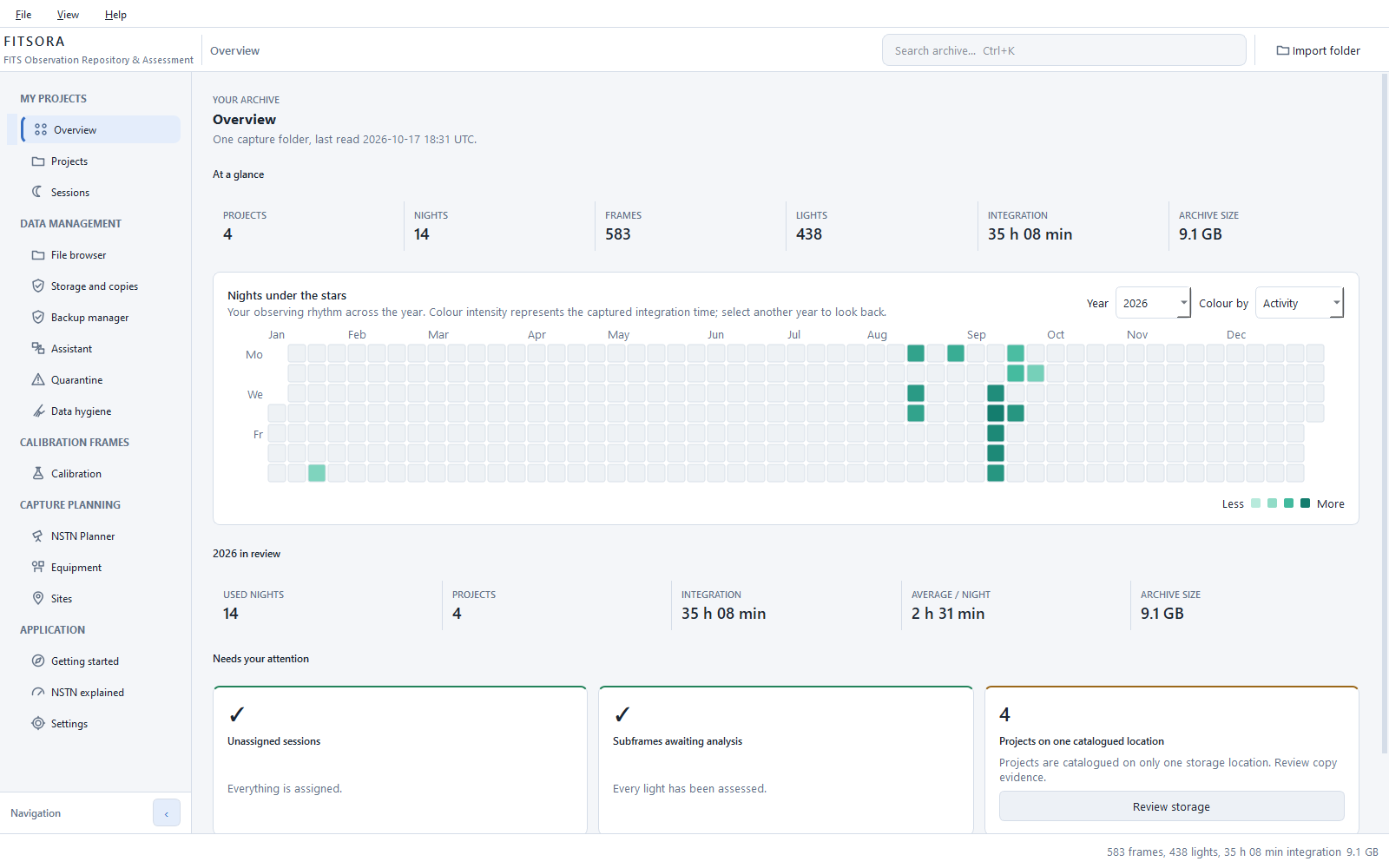
- Six archive figures
- Projects, nights, frames, lights, integration and disk space, counted rather than estimated.
- Projects rather than folders
- Date range, nights, integration per filter, equipment, observing site and storage locations for every target.
- Capture configurations
- The Capture tab lists combinations of filter, exposure, gain, offset, set temperature, binning and read mode, with camera, lights, nights and integration. Grouping matches calibration matching. This tab also works with assessment disabled.
- Observing activity
- A year grid shows when you observed and how much you captured, coloured by activity, site or equipment.
- Year in review
- Nights used, projects, integration and averages per night for a whole year.
- Outstanding work
- Unassigned sessions, unassessed exposures and projects with only one copy.
- Full-text search
- Find targets, projects, nights, filenames and equipment through a keyboard shortcut.
FITSORA · Overview
Organize
A structure that will still make sense in five years
- Nights rather than calendar days
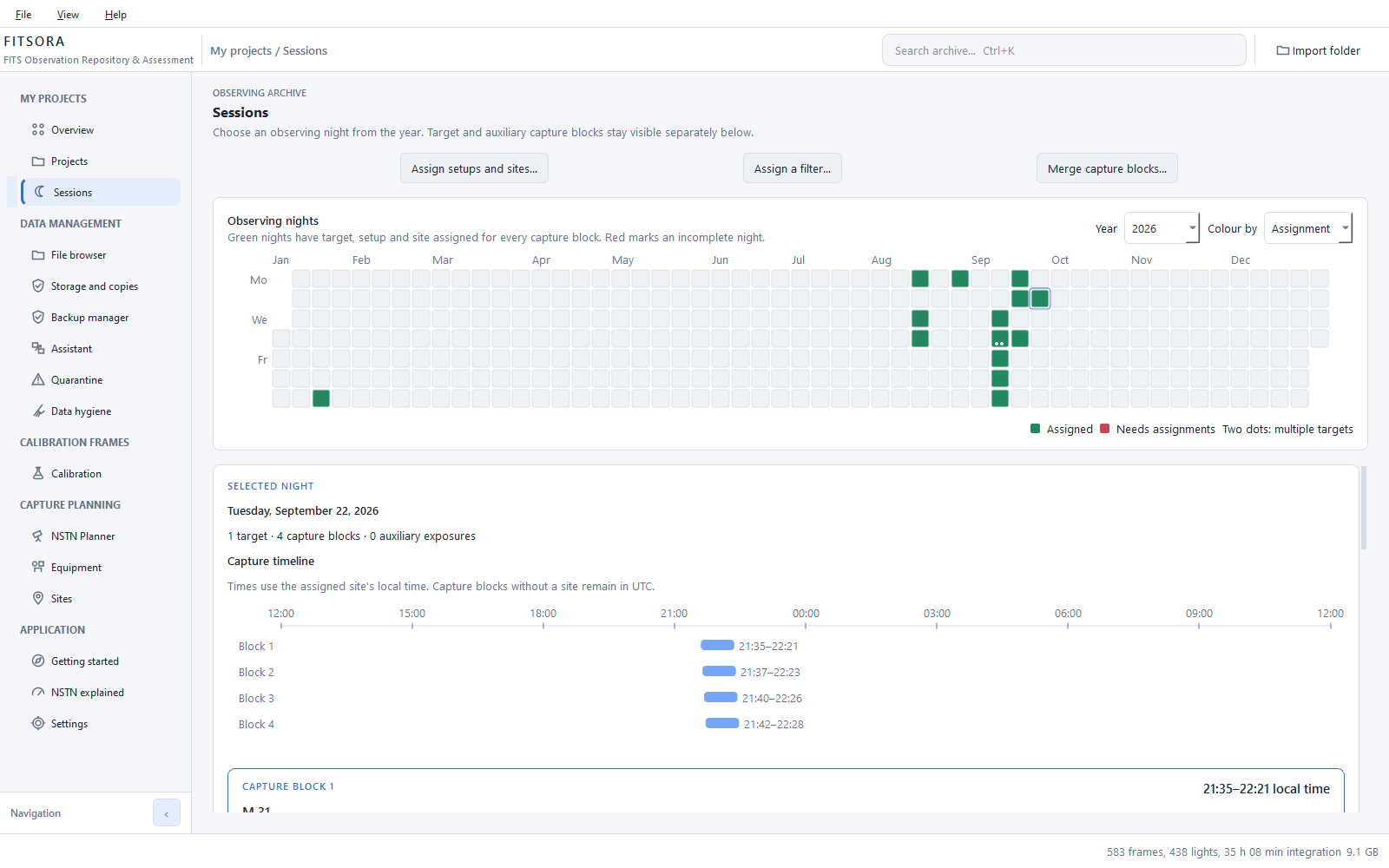
- Capture blocks appear on a timeline in local time. An observing night does not end at midnight.
- Visible assignments
- Green means target, setup and site are assigned. Red means something is missing.
- Preview before execution
- Every move is shown in full before any file moves.
- Hash verification
- After a move, the destination file is checked against the source.
- A manifest for every run
- Actions and failures are logged. Undo individual runs from their manifests, including earlier runs.
- Assign filters by hand
- If a header names no filter (a colour camera has no filter wheel) or the wrong one, add a filter under “Equipment → Add filter…” and assign it to several sessions at once with “Assign filter…”. The assignment is stored in the catalogue; no file changes. It replaces the header value for those sessions: assessment per line, flat matching, export and planner follow it, and later scans respect it. You can withdraw it, and the header value applies again. Changed filters need reassessment: FITSORA withdraws assessments and measured sky values that depended on the previous filter, and says so. Manual decisions are kept.
- Merge capture blocks of one night
- If contradictory headers turned one night into several capture blocks, “Merge capture blocks…” joins them again. Only blocks of the same night, target and optics with the same effective filter can be merged. For different setups, sites or analysis settings FITSORA does not choose; it names what must be made equal first. A merge can be undone, the blocks return with their frames, and frames added later stay in the merged block. Several merges are undone in reverse order, newest first; if a later merge depends on one, FITSORA says so and blocks the undo until the later one is undone.
- Rename, merge and split
- Rename a project independently of its first header. Undo a merge, including the nights, frames and capture goals it transferred.
- Hide projects
- Hide a finished image or test project without deleting anything. Search still finds it. Decide separately whether its nights count towards statistics.
- Data hygiene
- Lists processed exports, duplicates on the same drive, XISF files, unreadable FITS files and darks or bias outside the calibration pool. The view only reports; you decide what happens next.
- Tidy duplicates
- An assistant moves extra copies on the same drive to a folder you choose, using checksum detection, a preview and an undo record. Nothing is deleted.
- Separate calibration pool
- Darks and bias belong to cameras rather than targets and stay outside projects.
- Processing artifacts
- Regenerable intermediate results are identified separately from capture data. An assistant can move them to another drive to free archive space.
FITSORA · Sessions
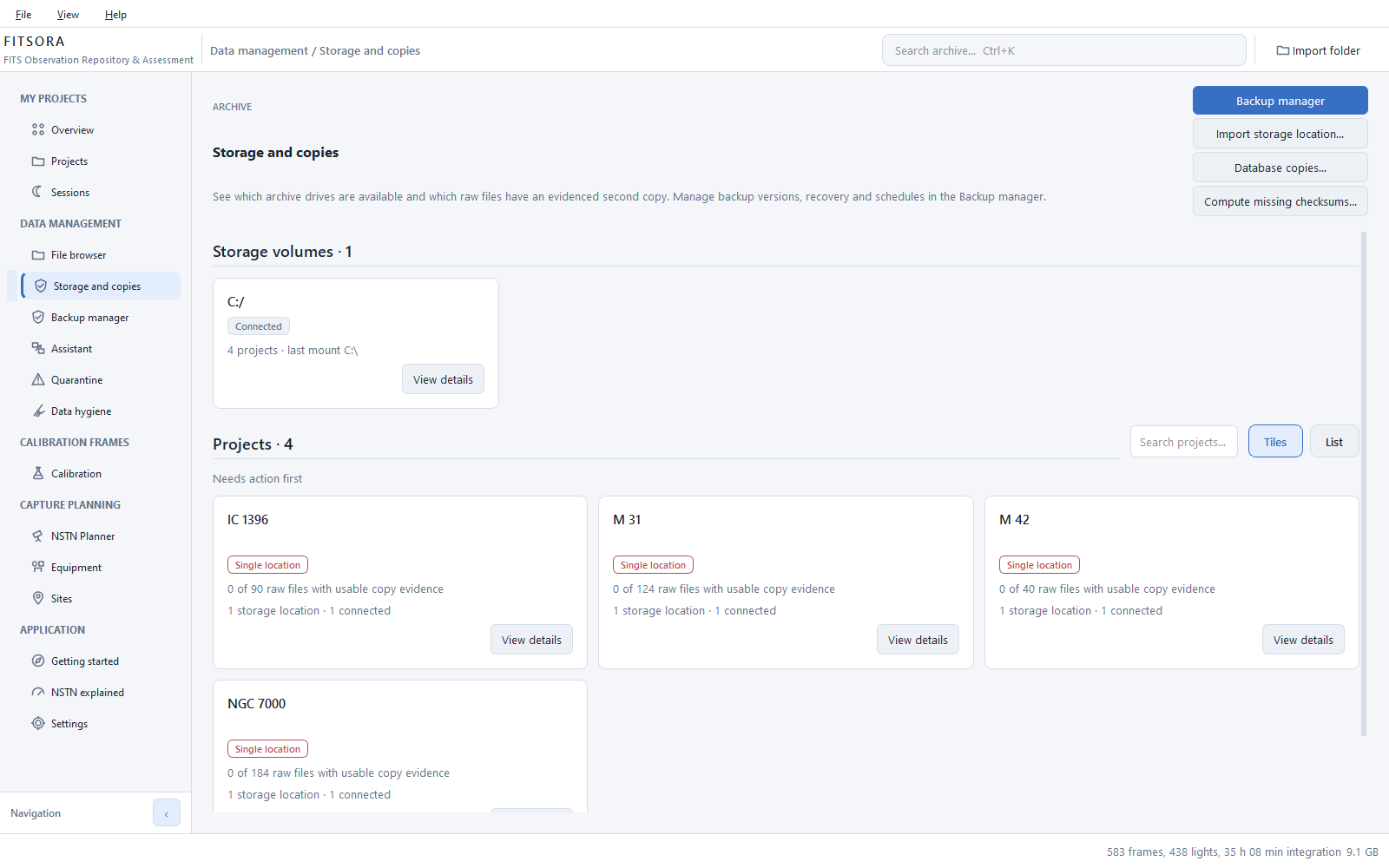
Storage and copies
Know which data exist only once
- Recognized copies
- Requires the same SHA-256 checksum on two different, reachable drives, with file sizes and timestamps still matching the evidence. A second path alone proves nothing. This page reads the catalogue and creates no copies.
- Optional checksums
- Choose whether to calculate checksums before scanning. This requires reading whole files, rather than just headers, and is necessary for copy evidence. The dialog states the cost: from a network drive or over Wi-Fi it takes as long as copying the files, and a large import can take hours. Add missing checksums later for an existing catalogue.
- Copy raw data
- The assistant copies all or selected projects to an ordinary folder, verifies them and includes the calibration frames they need. Missing calibration series are named in the summary. These are files you manage yourself: no backup version, schedule or Backup manager coverage. Partial results are marked incomplete.
- Drive overview
- See availability, catalogued exposures, free space and the last scan for each drive.
- Action needed
- Projects with data in only one place appear in a list with their sizes.
- Database copies
- Weekly copies and copies before schema changes protect the catalogue and your decisions, rather than the image files. Restoring retains the replaced database as a separate copy.
- Start afresh
- Empty the catalogue deliberately, with a backup beforehand.
- Self-check
- The installed application checks its data directory, translation, catalogue, time zones and migrations, and writes a report.
- Task management
- Under “Settings → Task management” you see what FITSORA is doing or what waits for a free slot: scans, checksum runs and manually started backup work, with state, progress, elapsed time and, where supported, cancellation. When a task waits, FITSORA names the reason and links the task that blocks it. You set how many long tasks run at once (1 to 4, default 2) there; a lower value interrupts nothing that is already running. Recent results stay as a summary (200 by default); reports, manifests, backup versions and files keep their own retention. A permanent button shows running and waiting tasks. A new backup plan waits while a scan or checksum run is changing the catalogue, so half-read source folders do not enter the plan. Tasks that Windows starts on a schedule keep their execution mode.
FITSORA · Storage and copies
Backup manager
Back up with a preview, a version and evidence
- Backup jobs
- Store the destination and scope: all catalogued raw data or selected projects with matching calibration. Full-archive jobs include the entire calibration pool and unassigned exposures. Sidecars travel with raw images.
- Optional extras
- Include a consistent catalogue snapshot with operation logs, or catalogued processing results. Unknown files are excluded. The catalogue contains saved settings and connection details and is unencrypted; protect the destination accordingly.
- Preview before starting
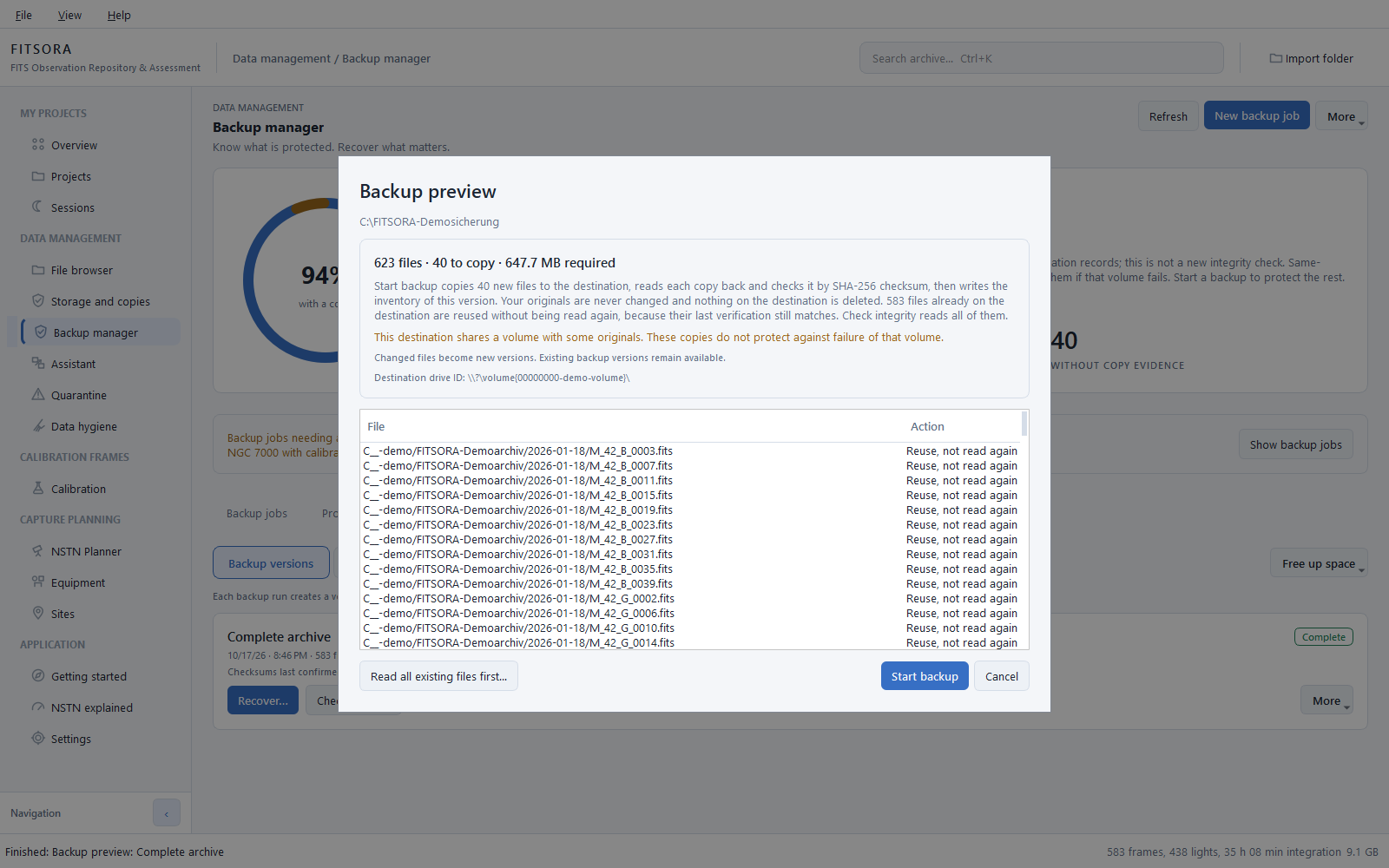
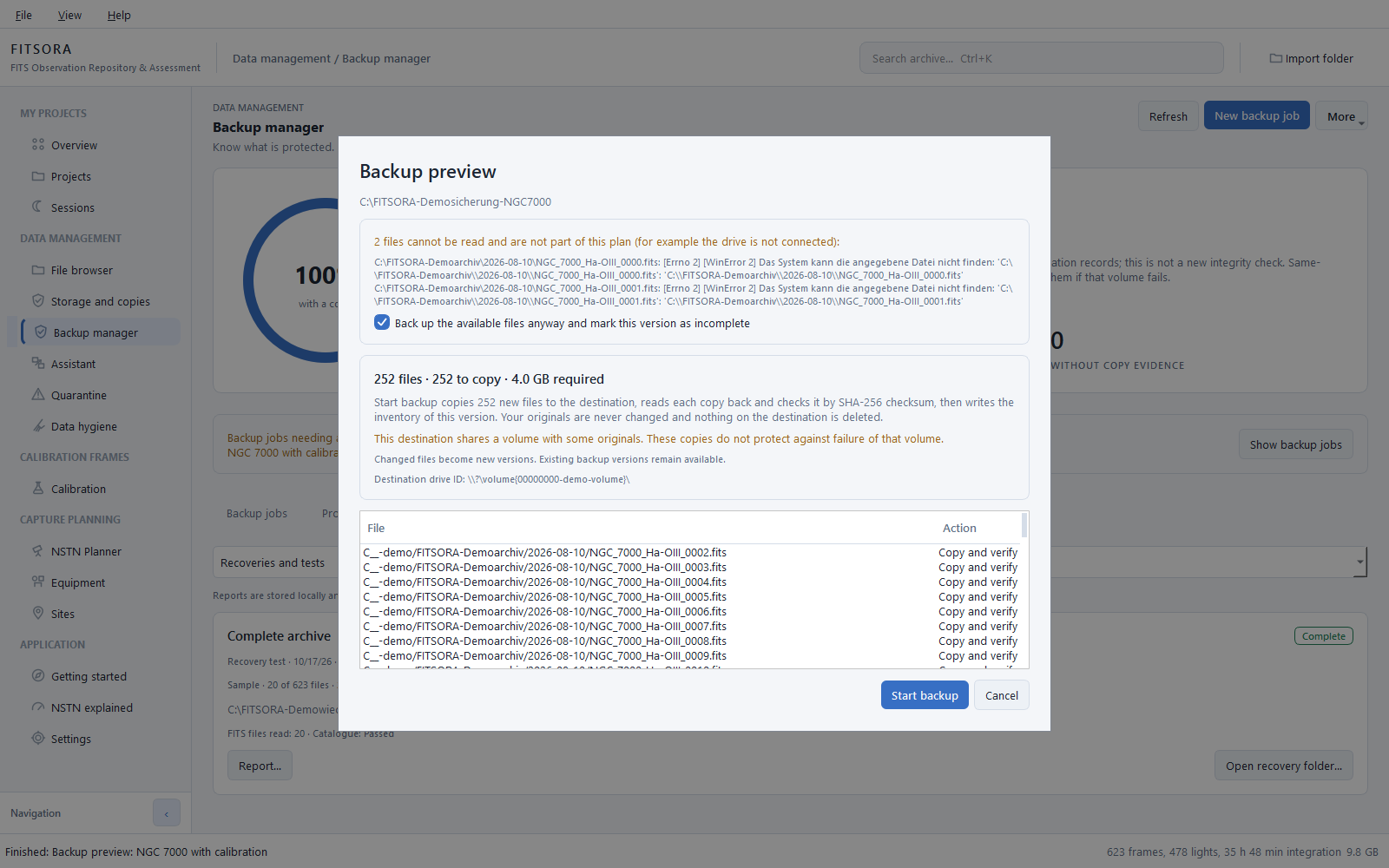
- Lists every file as copy and verify, already verified, or reuse without rereading. Problems come first. The disabled start button explains why, and free space is checked. Source files never change. The destination must be outside scanned capture folders.
- Incremental, with reuse
- Content-addressed storage keeps a file once even if several versions need it. Later runs copy only new and changed files. Existing files are reused when sizes and timestamps match evidence; choose to read all existing files first for a complete comparison. New copies are hashed during writing and reread from the destination before publication.
- Backup versions
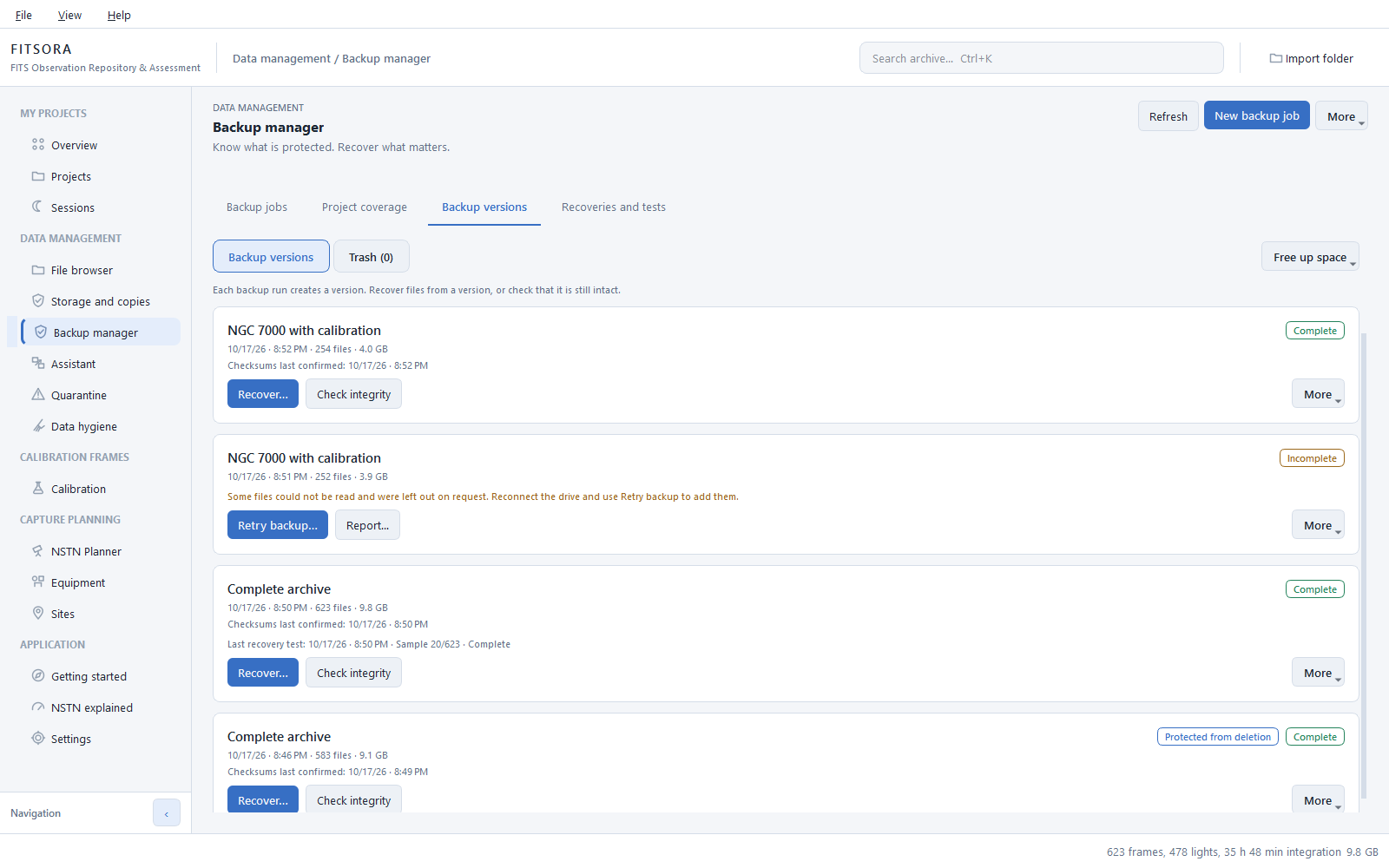
- Each run records source, checksum, project, type and timestamp for every file. Earlier versions remain. A job remembers its destination drive on the first run and requires confirmation before writing to a different drive. This prevents mix-ups, rather than providing cryptographic authentication.
- Check integrity
- Rereads every backed-up file and compares SHA-256 checksums, detecting damage even if size and timestamps stay unchanged. Failed checks remain visible without rewriting copy history.
- Restore files
- Select projects, night or file names, or individual files, and restore to a folder you choose. The preview checks availability, disk space, Windows path lengths and collisions. Different existing files are never overwritten. Each restored file is verified. Import the folder afterwards; there is no automatic relinking.
- Restore the catalogue
- Separately verifies checksum, SQLite integrity and schema, retains the current database as a recovery copy and restarts. “Open existing backup…” reads versions from a destination even after the original profile is lost. Imported versions remain unverified until an integrity check.
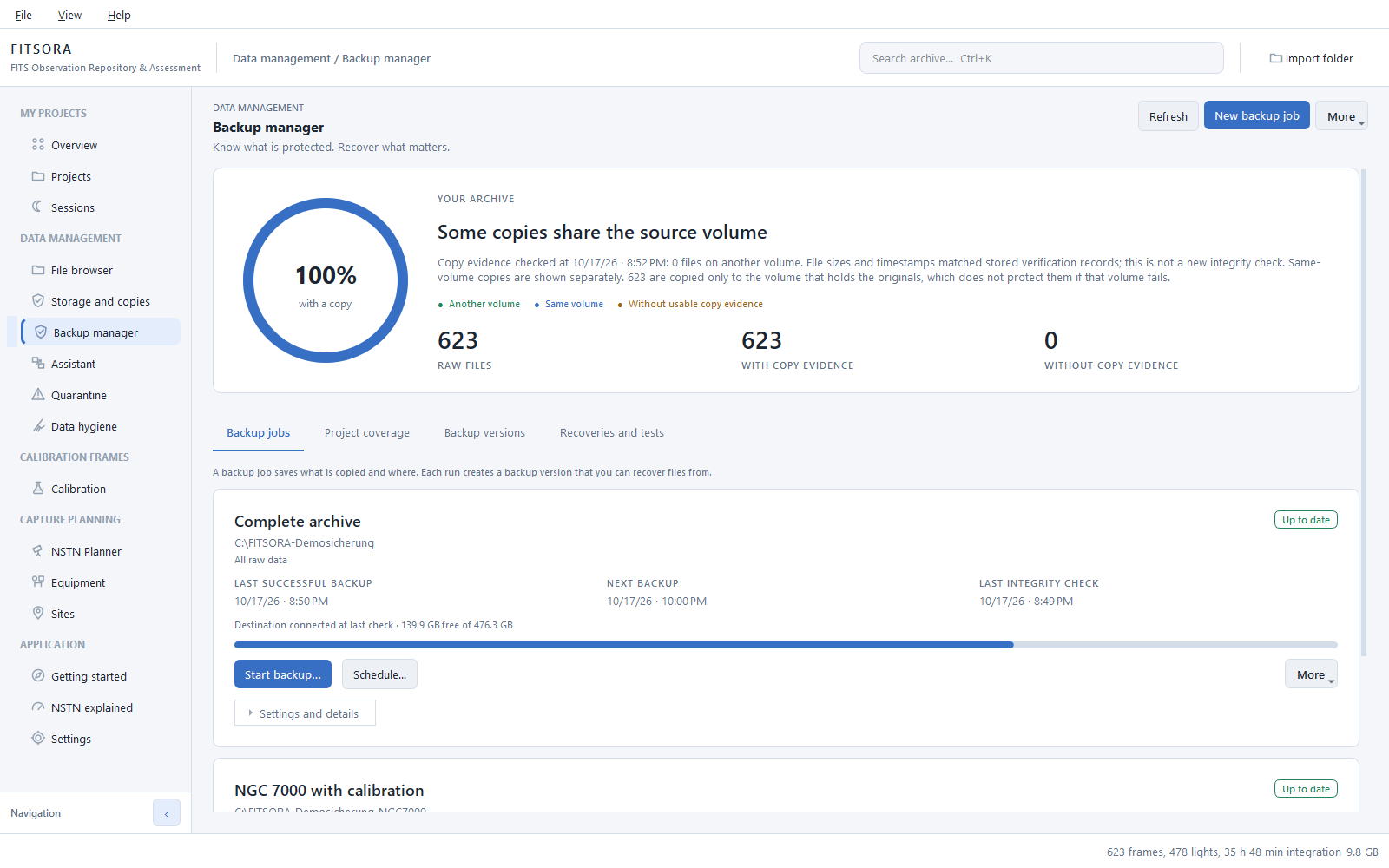
- Archive coverage
- Green means copy evidence on another drive; blue on the originals’ drive; yellow no usable evidence. Dashes mean coverage has not been checked. A copy on the same drive does not protect against its failure.
- Project coverage
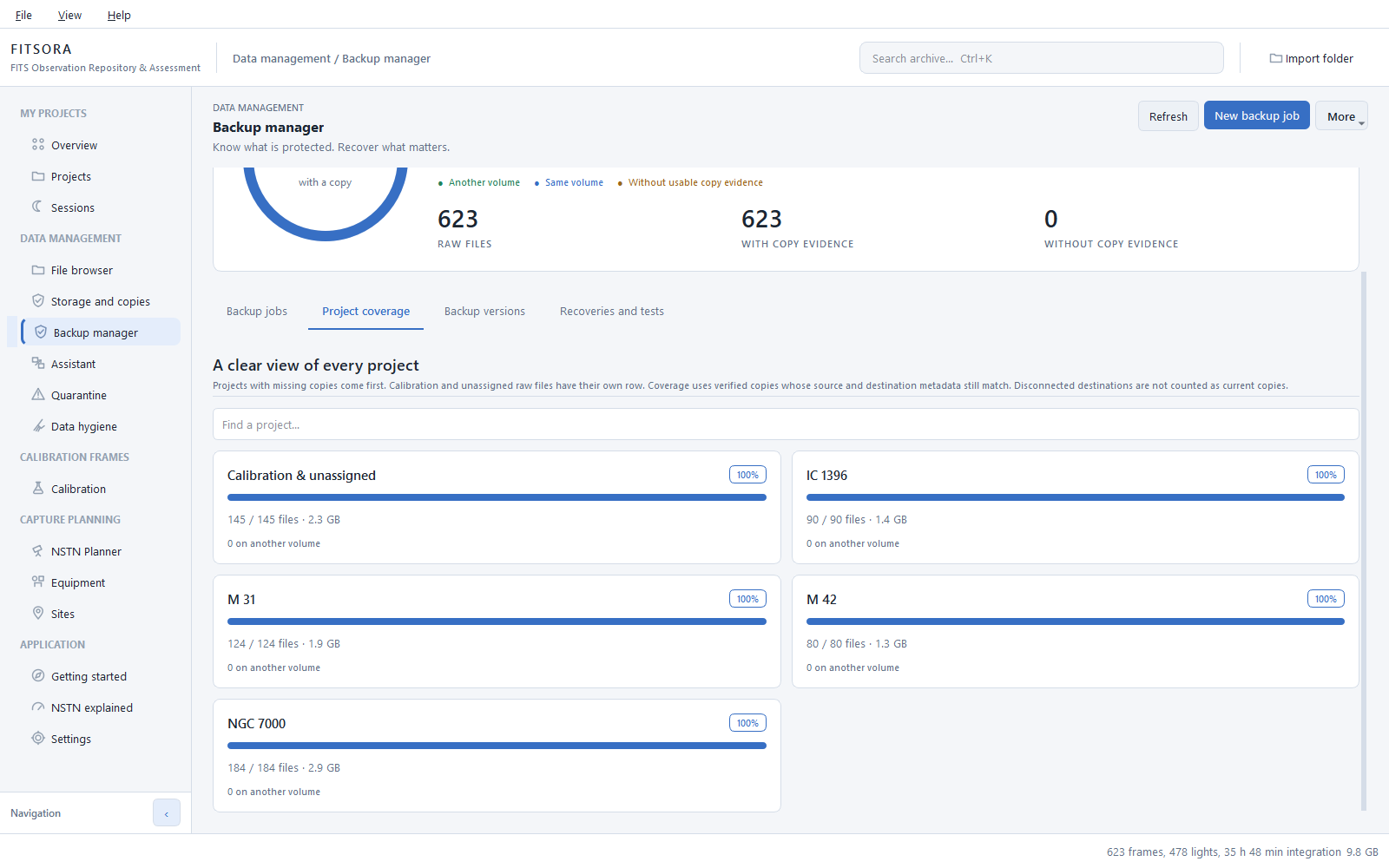
- Projects missing copies appear first. Calibration and unassigned raw data have their own row. Evidence is compared with current source and destination metadata; this is not a new integrity check. Disconnected destinations do not count as current copies.
- Data balance
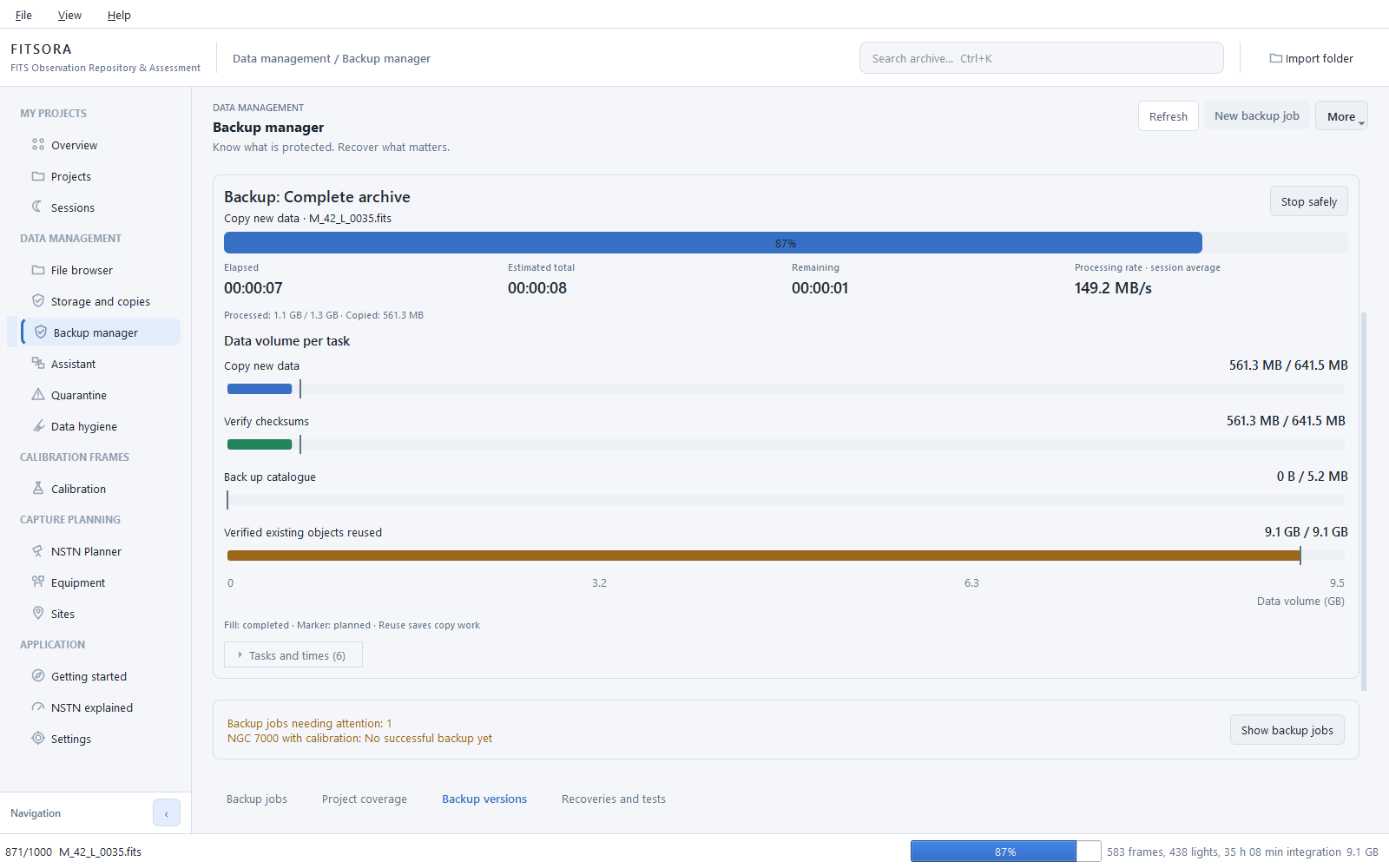
- Labelled bars on a common axis show new data copied, checksums verified, catalogue backed up and verified data reused. Marks show planned amounts. Elapsed, total and remaining time and processing throughput are estimates based on the run; throughput includes copying and checking, rather than just network transfer. Waiting drives are reported explicitly.
FITSORA · Backup manager
Automation and retention
Schedules, tests and recoverable trash
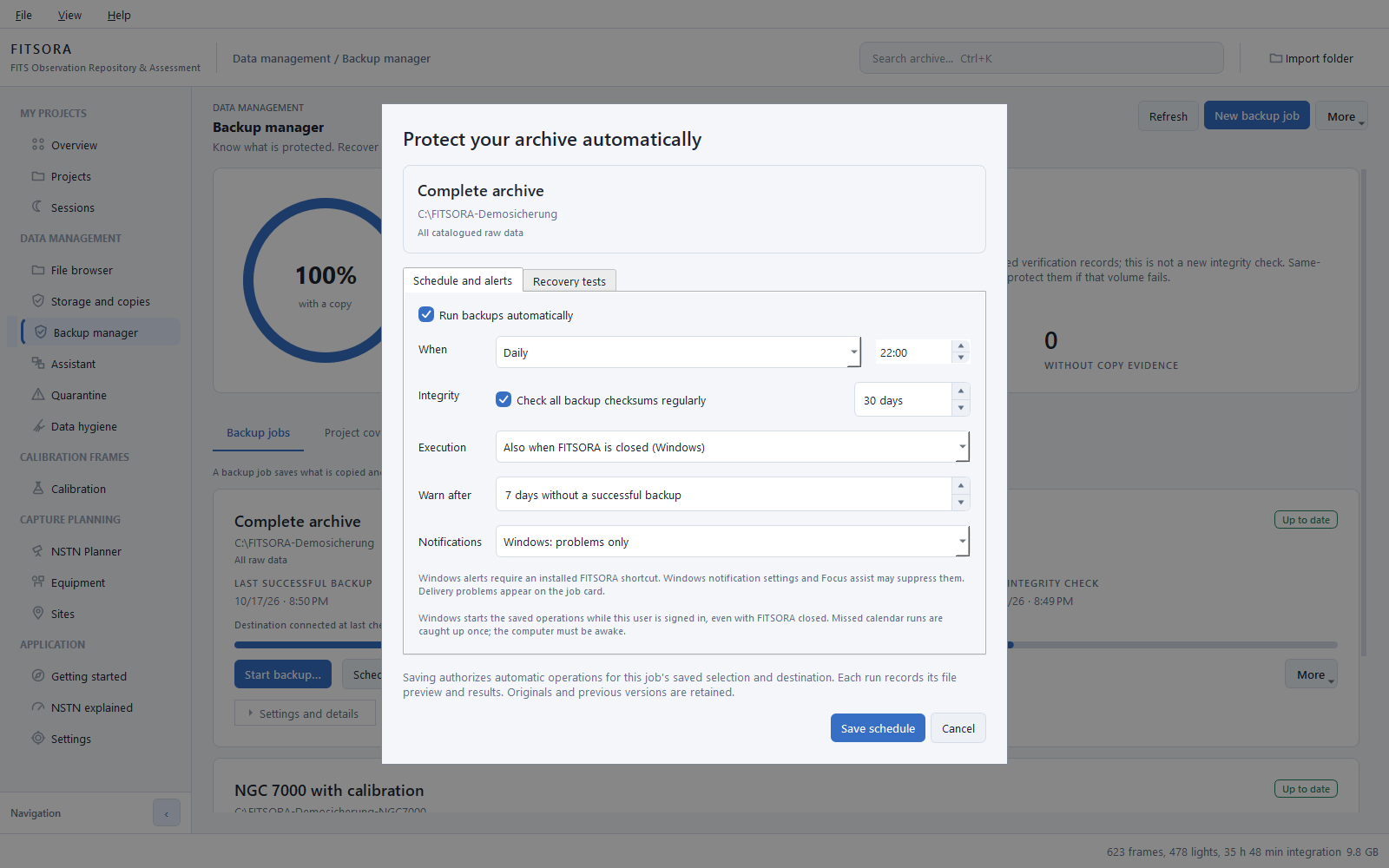
- Schedules
- Optional daily or weekly runs in local time. Missed runs are caught up once. An age threshold warns when the last successful backup is too old. Nothing is scheduled by default.
- Scheduled integrity checks
- Every 1–365 days, reread the latest complete version, optionally including the catalogue. Checks never delete old versions.
- Recovery tests
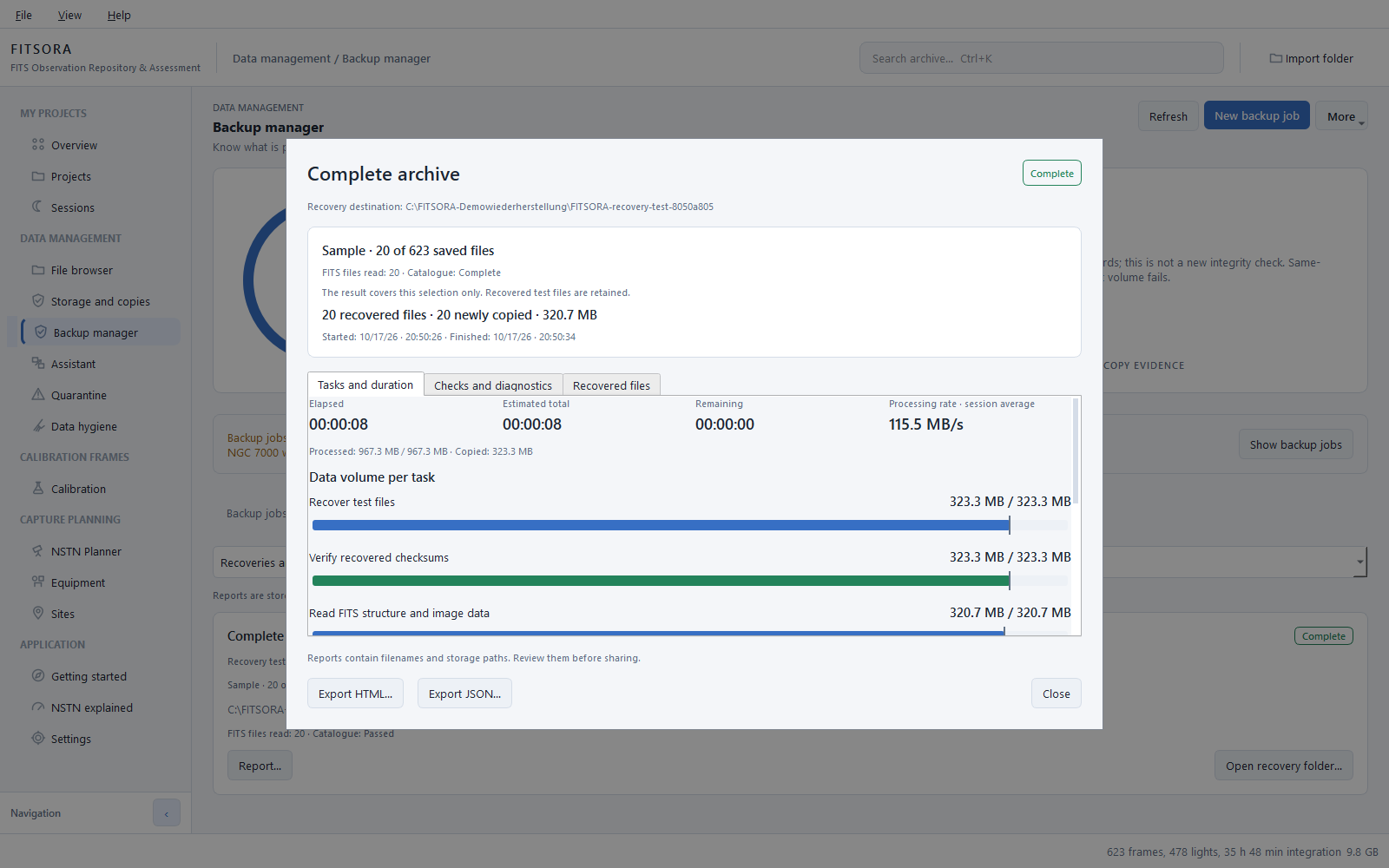
- After successful backups or at fixed intervals, restore a sample of 1–5,000 files (20 by default for manual tests) to a new folder outside the destination. Checksums are verified before and after copying, FITS data are fully read, and a catalogue copy can be tested without changing the active database. Results apply only to the sample and say nothing about image quality. Test folders remain and use space.
- While FITSORA is closed
- Choose per job. While open, FITSORA checks due work every minute. The Windows option creates one scheduled task per profile, running without a window. You must be logged in and the computer awake. There is no service, no administrator requirement and no execution after signing out. Nothing is added to Windows without this choice.
- Notifications
- Off by default. Choose problems only or all results as local Windows notifications. No email or internet service. Windows settings may suppress accepted notifications.
- Retention rules
- Keep the latest 1–365 successful versions, plus 0–104 weekly and 0–120 monthly versions. The last successful version always remains. Rules only suggest cleanup; every cleanup needs a fresh preview and approval. Scheduled runs never clean up automatically. Versions go to trash, which does not immediately free space.
- Protected versions
- Protection is stored in your FITSORA profile. It does not prevent external changes, ransomware or profile loss.
- Recoverable trash
- Moving a version to the destination’s trash leaves its data in place. Restore it and check integrity again. Only “Free up space” permanently deletes data, after its own preview and separate confirmation; that action cannot be undone.
- Reports
- Per-file results, task timings, readable error explanations and the latest check result remain in your profile even when the drive is absent. Export HTML or JSON without overwriting existing files. Reports contain filenames and paths, rather than a catalogue copy.
- Interrupted runs
- Failed or stopped runs keep finished files. Retrying creates a new version and reuses verified data. An interrupted integrity check never counts as passed.
- Incomplete backups
- Manually back up available files when originals are unreadable, if you explicitly choose. The version is marked incomplete, has no verification date and never counts as the last successful complete backup. Scheduled runs instead fail on unreadable sources and report the problem.
- Stop safely
- Finishes the current file and retains verified work. Closing during a run asks whether to continue or stop and close. A Windows background task runs independently.
FITSORA · Backup schedule
Calibration
Matching calibration, with the gaps visible
- Match by configuration
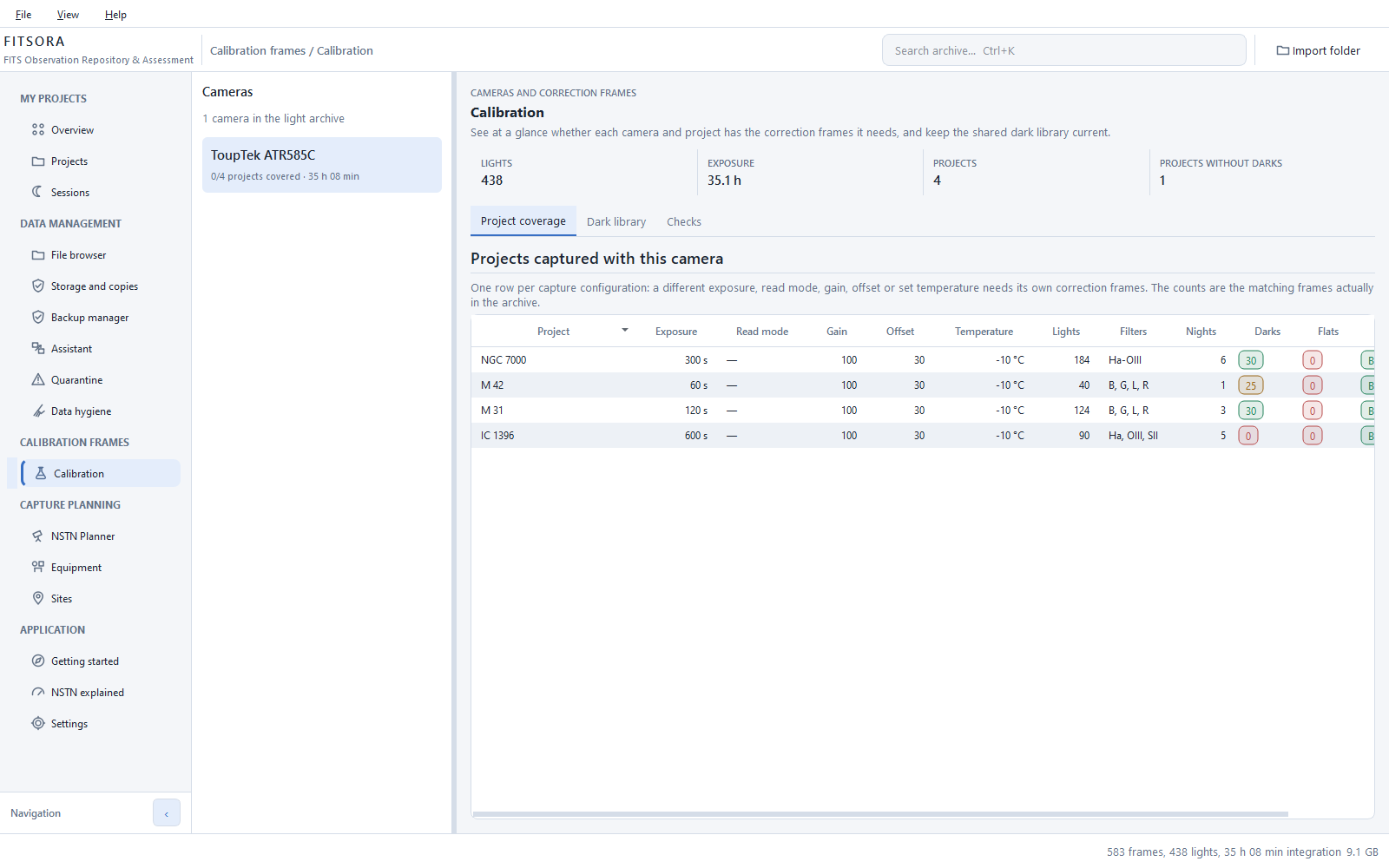
- Find darks and flats for each exposure, read mode, gain, offset, temperature and binning combination.
- Missing frames are visible
- Zero means none matched. Darks and bias are shared between projects; flats belong to their observing night.
- Organized by camera
- The calibration pool is organized by cameras and capture configurations, rather than projects.
- A capture checklist
- Missing calibration series are listed with the largest gap first and the archive exposure time affected by that gap.
- Equipment aliases
- Alternative camera names written by different capture software are brought together so spelling differences do not prevent matching.
FITSORA · Calibration
Optional assessment
One file, separate verdicts per filter line
- Off by default
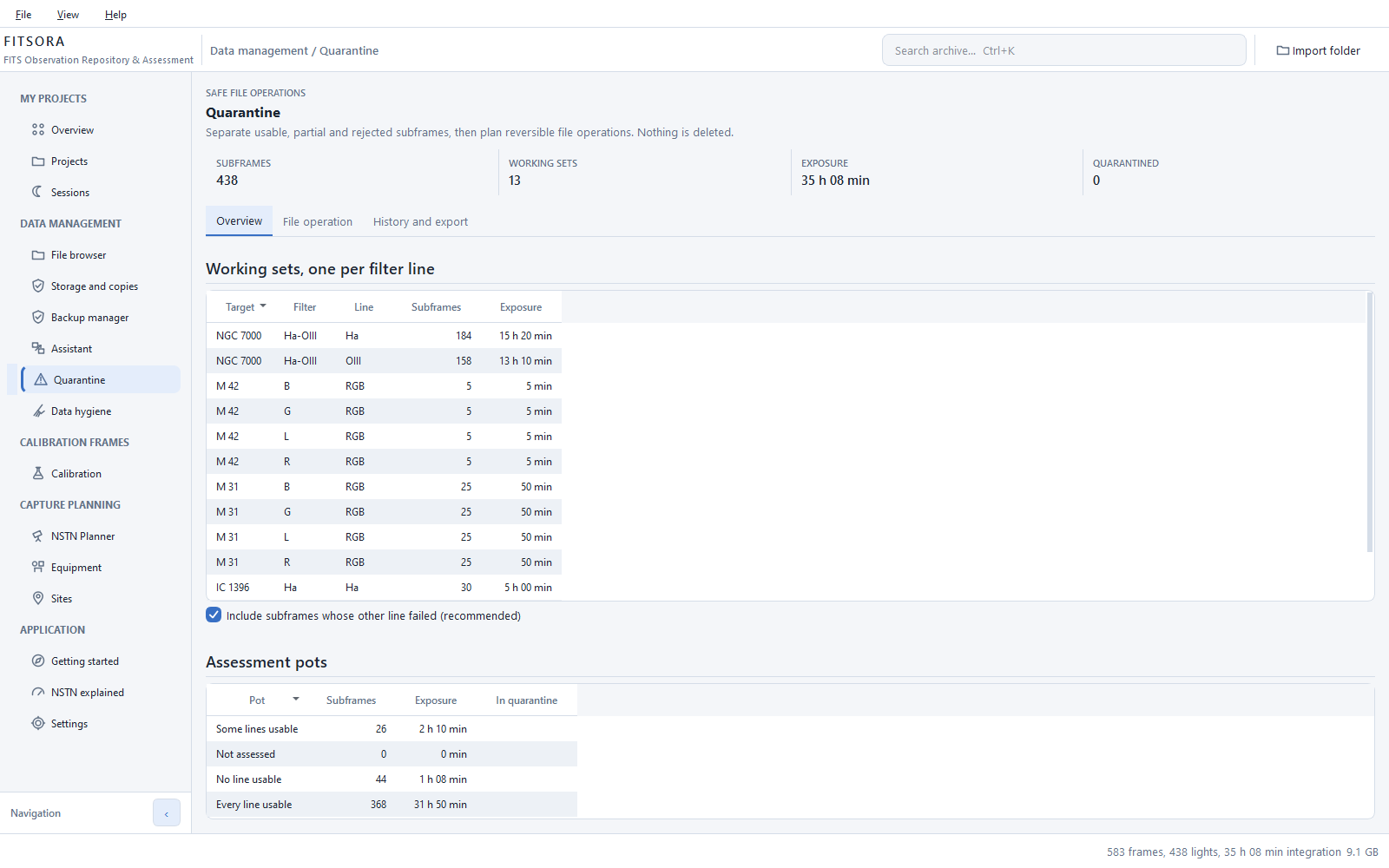
- One switch controls assessment, planner, quarantine, stacking plans, thresholds and verdict columns. Disabling it preserves all stored assessments.
- Night model
- Estimates sky background from twilight, moon phase and separation, target altitude, site and described filters. Geometry is checked against an independent calculation; sky brightness itself has not been independently validated.
- Assessment per line
- A dual-band frame gets separate Hα and O III verdicts.
- Site-dependent thresholds
- Enter measured SQM or a Bortle class for the site. Thresholds follow that site, rather than a fixed universal number.
- No image measurements
- No pixel-based background, noise, clipping, absolute sky brightness, focus, tracking or weather measurements. Such analysis is deferred.
- Manual decisions
- Override the model for an exposure. The override remains visible and takes precedence.
- Three groups
- All lines usable, no lines usable, and some lines usable. A frame with usable Hα but unusable O III is not simply discarded.
- Hard-link exports
- Export selections separately per filter line through hard links, rather than additional full copies.
FITSORA · Quarantine
Planning
Looking back is half of planning ahead
- Exposure planner
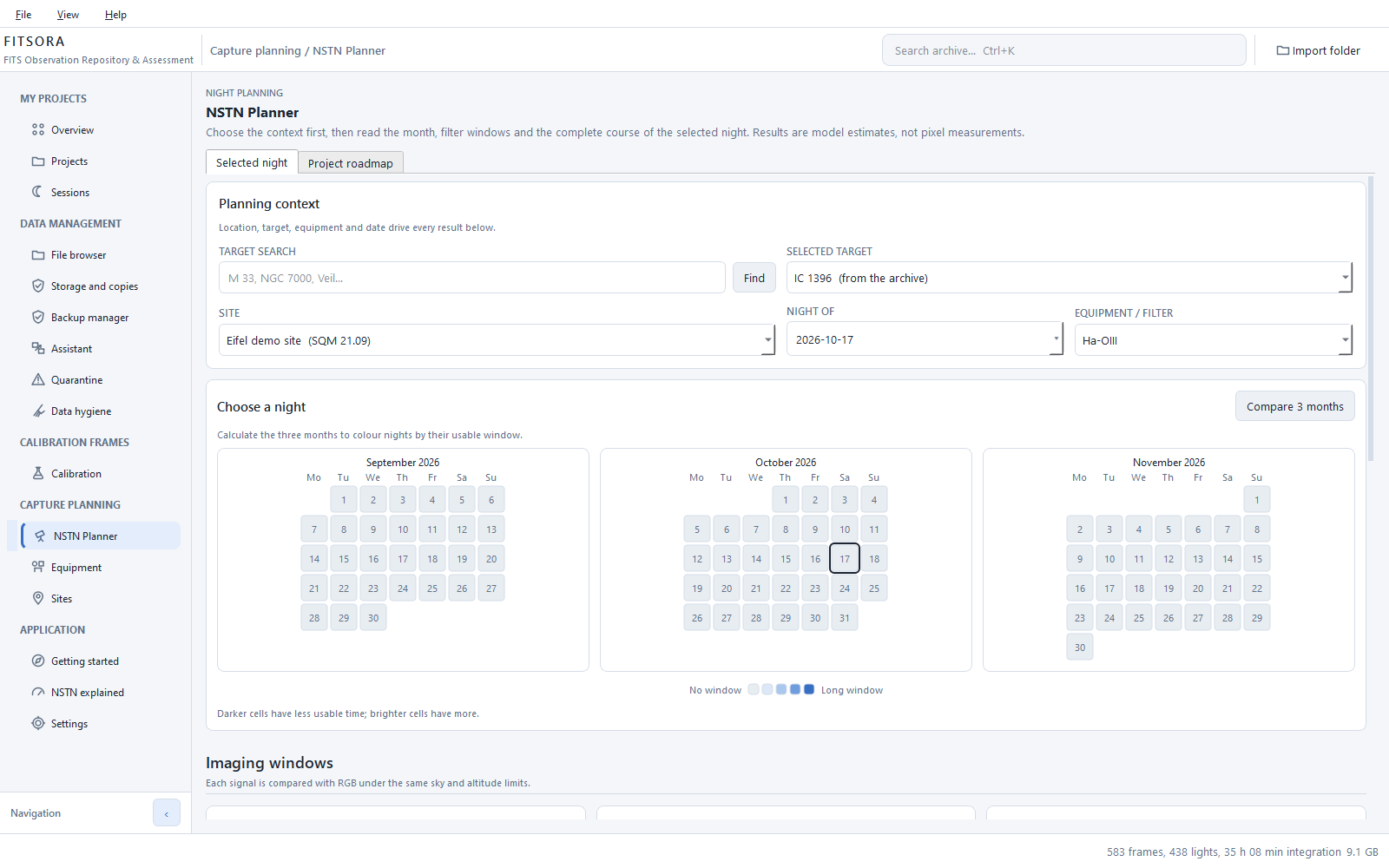
- Visibility, moon separation and usable windows per filter line for upcoming nights, calculated offline. FITSORA runs the model of the free NSTN calculator on astro-tools.de. Shares the assessment switch and is off by default.
- Existing targets
- Continue an archive project without creating a new target entry.
- Target and field
- Overlay your optics’ field of view on the target, with catalogue objects and optional rings. Objects appear as ellipses turned the way the catalogue gives them, nebulae with their traced outlines from OpenNGC where there are any. If the header contains a plate solution, the field is centred on its image centre, not on the requested target from RA and DEC. If the capture comes from N.I.N.A. 3 and no measured angle exists, FITSORA draws the field with the target’s planned angle as a dashed, rotated frame and labels it explicitly as planned: the actual image may be rotated differently, and a plate solution or a position angle you state takes precedence. A rotator reading is a motor position, not a sky angle. If no angle is known at all, the field is drawn north up and objects near the corners are marked as depending on the rotation. The geometry was compared against astropy.wcs in the tests. The sky image behind it comes from the DSS2 colour survey of CDS Strasbourg; FITSORA credits its creators and licence right beside the image.Sky image: Digitized Sky Survey - STScI/NASA, Colored & Healpixed by CDS, ODbL 1.0 (Sources and licences).
- Capture goals
- Track desired integration per filter or signal against what has been achieved.
- Stacking plans
- Save the exposures intended for the next stack.
- Observing sites
- Record coordinates, time zone and sky quality. Headers cannot tell you how dark the sky was.
FITSORA · NSTN Planner
The Backup manager in pictures
Real runs with synthetic files
These images come from real backups of the synthetic demo archive in an isolated profile. The destination is on the same drive, so copies appear in blue rather than green.
FITSORA · Backup manager · Preview
FITSORA · Backup manager · Data balance
FITSORA · Backup manager · Project coverage
FITSORA · Backup manager · Backup versions
FITSORA · Backup manager · Incomplete backup
FITSORA · Backup manager · Recovery test
Five differences that matter
- “Copy raw data” is not a backup version
- The assistant writes ordinary file copies to a folder. It creates no managed, versioned backup, schedule or coverage in the Backup manager. You manage these copies yourself.
- A database copy does not back up images
- It protects the catalogue and your decisions, rather than the image archive. Raw images need a backup job or a file copy.
- Coverage is not a fresh integrity check
- Copy evidence compares recorded evidence with current file sizes and timestamps. It does not reread the files. “Check integrity” is a separate action that reads and compares every backed-up file again.
- The same drive does not protect against its failure
- Copies on the drive holding the originals appear in blue and do not count as protection against that drive failing. Green means only a different drive as reported by the operating system. It does not prove that two partitions, a RAID or a NAS are physically independent, or that a copy is off site.
- Incomplete means incomplete
- If unreadable originals leave files missing, the version is marked “Incomplete”. You can restore and check it, but it has no verification date and never counts as a complete backup.